Setup OVOC SSL Connection
This procedure describes how to setup the OVOC Server SSL connection.
|
1.
|
Ensure that the OVOC server FQDN binds to the OVOC Server Public IP address and is defined in the public DNS server. |
|
2.
|
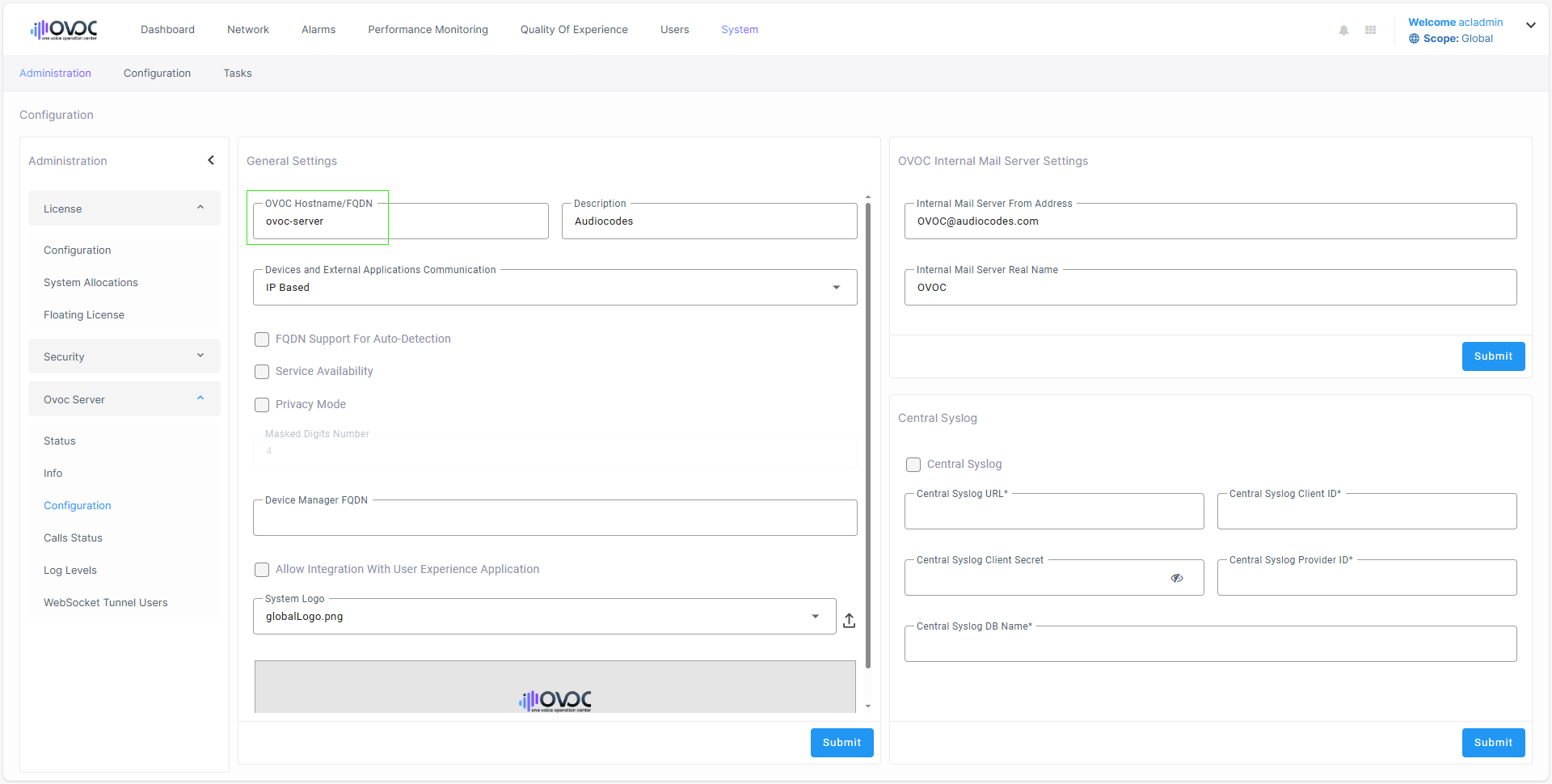
In the OVOC Web, open the OVOC Server Configuration screen (System menu > Administration tab > OVOC Server folder > Configuration) |
OVOC Server Configuration
|
3.
|
Generate a server certificate with a known Certificate Authority with the OVOC FQDN defined in the CN (or alternatively in SAN) and then import it to the OVOC server (overriding default server certificate) using "Option 3 Import Server Certificates from Certificate Authority (CA)" in the Server Certificates Update menu (see Server Certificates Update |